Microsoft Fabric cost optimization works differently from almost every other cloud analytics platform. You do not pay per query, per gigabyte scanned, or per virtual machine. You buy a fixed pool of compute called a capacity, and every workload in your tenant, from a Power BI report refresh to a Spark notebook to a warehouse query, draws from that same pool. Get the sizing right and Fabric is remarkably predictable. Get it wrong and you either throttle your users or pay for compute that sits idle overnight.
That single design choice, capacity-based billing, is why so many teams overspend. A capacity that runs 24 hours a day still bills for the hours when nobody is querying anything. According to the Azure pricing calculator, an always-on capacity ranges from a few hundred dollars a month at the entry level to several thousand for enterprise sizes, so the gap between a right-sized capacity and a guessed one adds up fast across a year.
This guide breaks down how Fabric actually charges you, how workloads consume capacity through smoothing and bursting, and the concrete levers that bring the bill under control. The same discipline that a data team applies to BigQuery cost optimization applies here, only the mechanics are specific to Fabric's capacity model.
How Microsoft Fabric billing works: capacity units and SKUs
Fabric compute is measured in capacity units (CUs). A CU is an abstract unit of processing power, and you rent it by buying a capacity SKU. The F SKUs start at F2 (2 CUs) and scale up through F2048 and larger, with each step roughly doubling both the CUs and the price. An F2 has 2 CUs, an F4 has 4, an F64 has 64, and so on.
Two things sit outside the CU meter. Storage in OneLake is billed separately per gigabyte, similar to Azure Data Lake Storage, so your data footprint does not compete with your compute budget. Networking and some preview features can also carry their own charges. Everything else, meaning the compute for Data Factory pipelines, warehouse queries, Spark jobs, KQL databases, and Power BI, comes out of the shared CU pool.
You buy that pool in one of two ways, and the choice is one of the biggest cost decisions you will make.
| Model | How it bills | Best fit | Trade-off |
|---|---|---|---|
| Pay-as-you-go | Per CU-hour, no commitment | Dev, spiky, or short-lived capacities | Highest hourly rate; can be paused any time |
| Reservation (1 or 3 year) | Committed monthly rate | Steady production capacities | Locks in spend; keeps billing even when paused |
Microsoft states on its official Fabric pricing page that committing to a 1 or 3 year reservation saves roughly 41% compared with pay-as-you-go. That discount is large, but it only pays off on capacity you genuinely run around the clock. Reserve a capacity you later pause and you keep paying the commitment for nothing.
There is one more pricing cliff that changes the math entirely: F64. At F64 and above, users with a free license and a Viewer role can consume Power BI content, per Microsoft's Fabric licensing documentation. Below F64, every viewer needs a paid Power BI Pro or Premium Per User license. For an organization with hundreds of report consumers, jumping to F64 can cost less than buying that many individual Pro licenses, so the "expensive" SKU sometimes becomes the cheaper option once you count seats.
How workloads consume capacity: bursting, smoothing, and throttling
Here is the part that trips up most capacity planning. Fabric does not charge you for peak demand in the moment it happens. It spreads that demand out over time using two built-in mechanics, bursting and smoothing, described in Microsoft's capacity throttling documentation.
Bursting lets an operation temporarily use more compute than your SKU provides, so a heavy query finishes fast instead of crawling on a small capacity. Smoothing then averages that consumption across future time. Fabric divides time into 30-second timepoints, 2,880 of them in a day, and distributes the cost of each operation across them. Interactive operations, like a user running a report, smooth over a minimum of five minutes and up to 64 minutes. Background operations, like scheduled refreshes and Spark jobs, smooth over a full 24 hours.
The practical effect is powerful: you can size a capacity for average demand instead of peak demand. A batch of scheduled jobs that all fire at 2 a.m. gets spread across the next 24 hours, so it does not force you into a bigger SKU just to survive one spike.
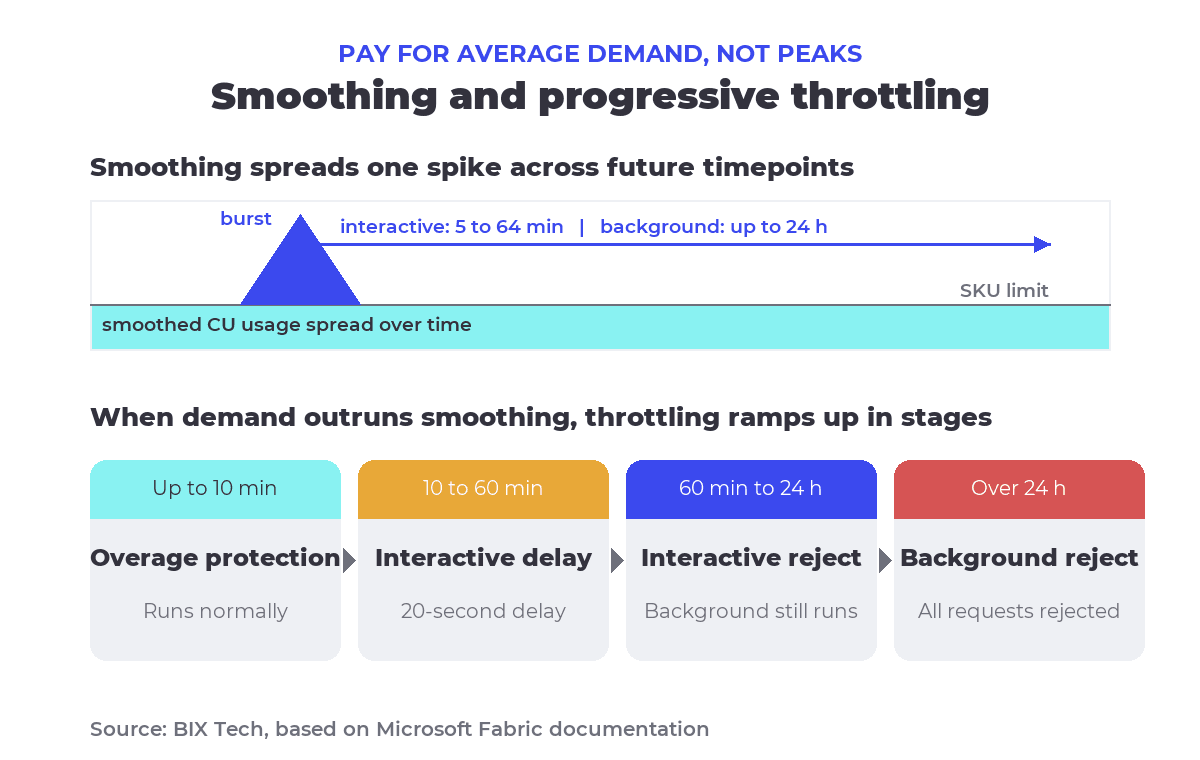 How Fabric smooths CU consumption over time and applies throttling in progressive stages. Source: BIX Tech, based on Microsoft documentation.
When sustained demand outruns what smoothing can absorb, Fabric throttles, and it does so in stages rather than cutting you off at 100%. The capacity first lends you a buffer, then slows interactive requests, then rejects them, and only in the extreme rejects everything.
| Future capacity consumed | Stage | What users experience |
|---|---|---|
| Up to 10 minutes | Overage protection | Nothing; jobs run normally |
| 10 to 60 minutes | Interactive delay | User-requested jobs delayed 20 seconds |
| 60 minutes to 24 hours | Interactive rejection | Interactive jobs rejected; background still runs |
| Over 24 hours | Background rejection | All new requests rejected |
Reading this table backward is the key to cost control. If your capacity only ever touches the "interactive delay" stage during a brief morning peak, you probably do not need a bigger SKU. If it sits in "interactive rejection" for hours every day, that is a genuine signal to scale up or scale out, not a reason to panic-buy the next tier during every minor spike.
The core levers of Microsoft Fabric cost optimization
Once you understand how CUs are billed and consumed, cost optimization becomes a set of deliberate levers rather than guesswork. None of them is universally "best." Each fits a specific pattern of usage, which is exactly why the BIX team treats capacity sizing as a per-workload decision across the platforms we work with.
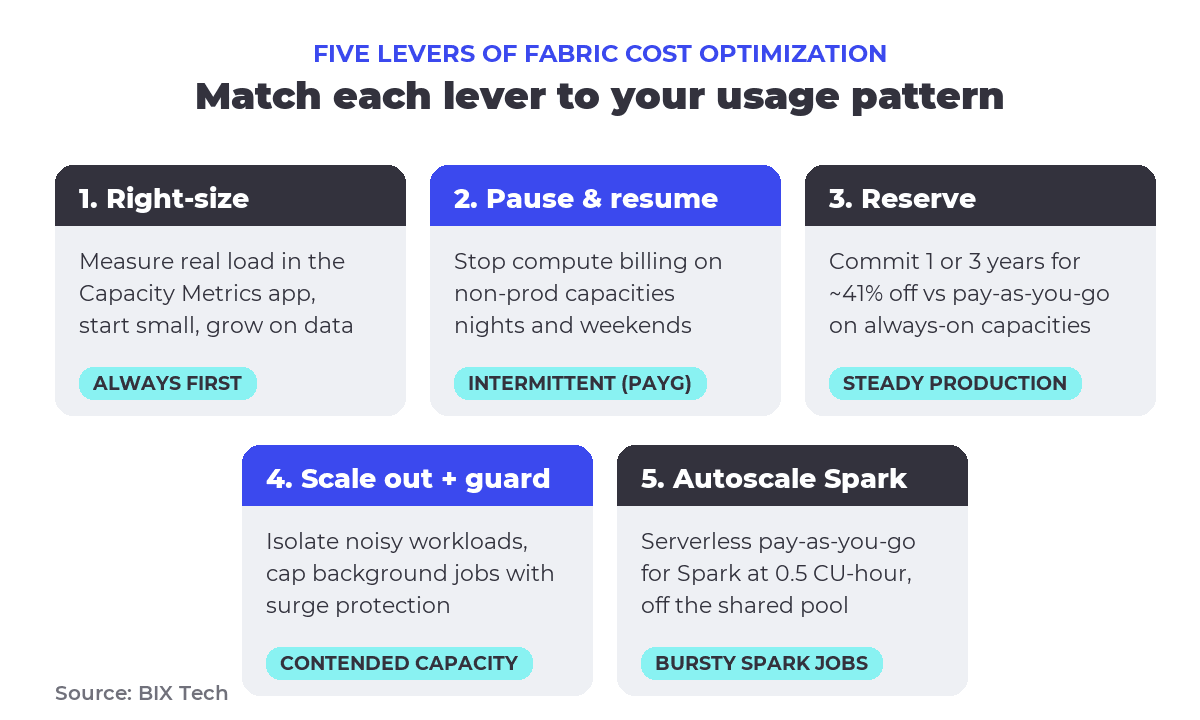 Five levers of Microsoft Fabric cost optimization, mapped to the usage pattern each one fits. Source: BIX Tech.
Right-size with the Capacity Metrics app
You cannot optimize what you cannot see. The Microsoft Fabric Capacity Metrics app is the source of truth for how CUs are spent, broken down by item and over time. Its Compute page shows peak hours and the top-consuming items, the Utilization chart flags spikes above the line, and the Overages tab visualizes carryforward at 10-minute, 60-minute, and 24-hour scales.
Start small and grow from evidence. Microsoft's own guidance in the capacity optimization docs is to provision a trial or pay-as-you-go capacity, measure the real load, and only then commit to a reserved SKU. Guessing high "to be safe" is the most common way teams overpay. The same telemetry that reveals waste in Fabric compute also lives in Power BI, and pulling it is easier than it looks, as covered in our guide to extracting Power BI usage data with no code.
Pause and resume non-production capacities
F SKU capacities can be paused, and a paused pay-as-you-go capacity stops billing compute entirely. For development, testing, or reporting capacities that nobody touches on nights and weekends, a scheduled pause and resume can cut the compute bill for those hours to zero. A capacity running only business hours on weekdays uses a fraction of the CU-hours of one left on continuously.
The catch is the billing model. Pausing a reserved capacity does not stop the reservation charge, because you already committed to it. So the pattern that saves money is clear: put intermittent capacities on pay-as-you-go and pause them, and reserve only the ones that truly run all the time.
Isolate workloads by scaling out and enabling surge protection
When one noisy workload starves everyone else, the answer is often to separate it. Scaling out means moving workspaces onto a different capacity so a heavy Spark or data engineering job cannot slow down an executive dashboard. Many teams keep a dedicated, correctly sized capacity for high-visibility reporting and a separate one for engineering experiments.
Surge protection adds a guardrail. Configured per capacity, it caps how much compute background jobs can consume, which keeps interactive users responsive and helps the capacity recover faster after a spike. Treat it as a tuning control that complements right-sizing: it prevents a runaway batch job from dragging the whole tenant into throttling, while proper sizing still does the heavy lifting.
Use Autoscale Billing for Spark for bursty jobs
Spark is frequently the least predictable workload in a Fabric tenant, and it now has its own billing model. Autoscale Billing for Spark, generally available since 2025, moves Spark off the shared capacity onto dedicated serverless compute billed pay-as-you-go, as described in Microsoft's autoscale billing overview.
When you opt in per capacity, Spark jobs stop consuming your capacity's CUs, so notebooks and pipelines no longer compete with Power BI or warehouse queries. Billing is based purely on active job runtime at the standard Spark rate of 0.5 CU-hour, with no idle cost, and you set a maximum CU limit to cap the budget. There is a trade-off worth knowing: autoscale billing does not use bursting or smoothing, and it does not fall back to your capacity, so once the CU limit is hit, interactive Spark jobs throttle and batch jobs queue. It fits dynamic, bursty Spark workloads far better than steady, predictable ones.
Workload tactics that cut CU consumption at the source
Levers manage the capacity. Efficient design reduces what each workload asks for in the first place, and this is where a well-built pipeline quietly saves money every single day. Microsoft's capacity optimization guidance offers concrete tactics per experience.
| Workload | High-impact tactic | Why it saves CUs |
|---|---|---|
| Spark | Stop idle sessions (default timeout 20 min); reserve only needed executors | Active sessions accrue CU even when idle |
| Warehouse | Star schema, smallest data types, up-to-date statistics | Smaller, better plans read fewer rows |
| Data Factory | Achieve query folding; avoid over-frequent refresh | Folds work to the source; skips needless runs |
| Power BI | Efficient DAX, fewer visuals per page, incremental refresh | Cuts interactive and background query cost |
A few numbers make the Spark case concrete. One CU maps to two Spark vCores, so an F64 gives you 128 vCores to work with. An idle Spark session keeps accruing CU until it times out, and the default is 20 minutes, which means a handful of forgotten notebooks can quietly burn capacity all day. On the warehouse side, every operation is treated as background and smoothed over 24 hours, so tightening T-SQL and data types pays off across the whole tenant rather than in one spike.
Governance and cost are two sides of the same coin here. A capacity where workspaces, access, and workloads are cleanly organized is far easier to monitor and right-size than a sprawling one, which is one reason platform governance, whether in Fabric or in a tool like Azure AI Foundry, keeps showing up in cost conversations. The same logic extends to how you surface analytics to end users: a lean, well-modeled semantic layer feeding embedded dashboards consumes far fewer CUs than a heavy report hammering the capacity on every refresh.
Cost optimization in Microsoft Fabric ultimately comes down to matching a fixed pool of capacity to real, observed demand: measure with the metrics app, pause what you do not run continuously, reserve what you do, isolate the noisy workloads, and design each pipeline to ask for less. Do that, and Fabric's capacity model turns from a source of bill shock into one of the most predictable spends in your data stack.
If your team is standing up Microsoft Fabric or wrestling with a capacity bill that keeps climbing, our specialists can help you right-size capacities, model workloads, and build the monitoring that keeps spend in check. Talk to our team and turn Fabric's capacity model into a predictable, well-governed cost. ⬇️

What is a capacity unit in Microsoft Fabric? A capacity unit (CU) is Fabric's abstract measure of compute power. You buy a capacity SKU, from F2 upward, that provides a fixed number of CUs, and every workload in the tenant, Power BI, warehouse, Spark, Data Factory, and more, draws compute from that shared pool. Storage in OneLake is billed separately per gigabyte.
How does Microsoft Fabric cost optimization actually work? It works by matching a fixed capacity to real demand rather than to worst-case peaks. Because Fabric smooths consumption over time, you size for average load, monitor usage in the Capacity Metrics app, pause non-production capacities, reserve steady ones for about 41% savings, and design workloads to consume fewer CUs.
What happens when a Fabric capacity is overloaded? Fabric throttles in progressive stages, not all at once. It first lends you 10 minutes of future capacity, then adds a 20-second delay to interactive jobs, then rejects interactive jobs while background jobs keep running, and only rejects everything once demand exceeds 24 hours of future capacity. Capacities are self-healing once demand drops.
Should I use pay-as-you-go or a reservation for Fabric? Use pay-as-you-go for spiky, development, or intermittent capacities you can pause, since pausing stops the compute charge. Use a 1 or 3 year reservation for production capacities that run continuously, where the roughly 41% discount pays off. Pausing a reserved capacity still bills the commitment.
When should I turn on Autoscale Billing for Spark? Turn it on when Spark workloads are bursty or unpredictable and you want to stop them from competing with Power BI and warehouse queries. Autoscale billing runs Spark on serverless pay-as-you-go compute at 0.5 CU-hour with a maximum CU cap, but it drops bursting and smoothing, so steady Spark jobs often fit the standard capacity model better.